2 Getting started using RStudio
2.1 Packages and functions
When you install R you will have access to a range of functions including options for data wrangling and statistical analysis. The functions that are included in the default installation are typically referred to as "base R" and you can think of them like the default apps that come pre-loaded on your phone.
One of the great things about R, however, is that it is user extensible: anyone can create a new add-on that extends its functionality. There are currently thousands of packages that R users have created to solve many different kinds of problems, or just simply to have fun. For example, there are packages for data visualisation, machine learning, interactive dashboards, web scraping, and playing games such as Sudoku.
Add-on packages are not distributed with base R, but have to be downloaded and installed from an archive, in the same way that you would, for instance, download and install an app on your smartphone. The main repository where packages reside is called CRAN, the Comprehensive R Archive Network.
There is an important distinction between installing a package and loading a package.
2.1.1 Installing a package
This is done using install.packages(). This is like installing an app on your phone: you only have to do it once and the app will remain installed until you remove it. For instance, if you want to use an app on your phone, you install it once from the App Store or Play Store; you don't have to re-install it each time you want to use it. Once you launch the app, it will run in the background until you close it or restart your phone. Likewise, when you install a package, the package will be available (but not loaded) every time you open up R.
For example, to install the tidyverse package on your system:
# Type this in the console pane
install.packages("tidyverse")
This package is the main package we will use throughout these labs for data wrangling, summaries, and visualisation. If you get a message that says something like package ‘tidyverse’ successfully unpacked and MD5 sums checked, the installation was successful.
2.1.2 Loading a package
This is done using the library() function. This is like launching an app on your phone: the functionality is only there where the app is launched and remains there until you close the app or restart. For example, when you run library(rio) within a session, the functions in the package referred to by rio will be made available for your R session. The next time you start R, you will need to run library(rio) again if you want to access that package.
For example, you can load the tidyverse package for your current R session as follows:
library(tidyverse)You might get some red text when you load a package, this is normal. It is usually warning you that this package has functions that have the same name as other packages you've already loaded.
2.1.3 Using a function
A function is a name that refers to some code you can reuse. We'll start by using functions that are provided for you in packages, but you can also write your own functions. After the function name, there is a pair of parentheses, which contain zero or more arguments. These are options that you can set. In the example above, the data argument is set to ggplot2::diamonds, which refers to a built-in dataset diamonds from the ggplot2 package.
If you type a function into the console pane, it will run as soon as you hit enter. If you put the function in a R script file in the source pane, it won't run until you run the script.
2.1.4 Tidyverse
tidyverse is a meta-package that loads several packages we'll be using in these labs, including:
ggplot2, for data visualisationreadr, for data importdplyr, for data manipulation
2.1.5 Function Help
When you load the tidyverse it automatically loads all of the above packages, however, it can be helpful to know which package a function comes from if you need to Google it. If a function is in "base R" or a loaded package, you can type ?function_name in the console to access the help file. At the top of the help it will give you the function and package name.
If the package isn't loaded, use ?package_name::function_name or specify the package in the help() function. When you aren't sure what package the function is in, use the shortcut ??function_name.
# if the package is loaded
?select
help("select")

# works whether or not the package is loaded
?dplyr::select
help("select", package="dplyr")

# shows a list of potentially matching functions
??select
Function help is always organised in the same way. For example, look at the help for ?dplyr::select. At the top, it tells you the name of the function and its package in curly brackets, then a short description of the function, followed by a longer description. The Usage section shows the function with all of its arguments. If any of those arguments have default values, they will be shown like function(arg = default). The Arguments section lists each argument with an explanation. There may be a Details section after this with even more detail about the functions. The Examples section is last, and shows examples that you can run in your console window to see how the function works.
2.1.6 Arguments
You can look up the arguments/options that a function has by using the help documentation. Some arguments are required, and some are optional. Optional arguments will often use a default (normally specified in the help documentation) if you do not enter any value.
As an example, look at the help documentation for the function sample() which randomly samples items from a list.
?sampleThe help documentation for sample() should appear in the bottom right help panel. In the usage section, we see that sample() takes the following form:
sample(x, size, replace = FALSE, prob = NULL)In the arguments section, there are explanations for each of the arguments. x is the list of items we want to choose from, size is the number of items we want to choose, replace is whether or not each item may be selected more than once, and prob gives the probability that each item is chosen. In the details section it notes that if no values are entered for replace or prob it will use defaults of FALSE (each item can only be chosen once) and NULL (all items will have equal probability of being chosen). Because there is no default value for x or size, they must be specified otherwise the code won't run.
Let's try an example and just change the required arguments to x and size to ask R to choose 5 random letters (letters is a built-in vector of the 26 lower-case Latin letters).
sample(x = letters, size = 5)## [1] "z" "v" "y" "w" "j"sample() generates a random sample. Each time you run the code, you'll generate a different set of random letters (try it). The function set.seed() controls the random number generator - if you're using any functions that use randomness (such as sample()), running set.seed() will ensure that you get the same result (in many cases this may not be what you want to do). To get the same numbers we do, run set.seed(1242016) in the console, and then run sample(x = letters, size = 5) again.
Now we can change the default value for the replace argument to produce a set of letters that is allowed to have duplicates.
set.seed(8675309)
sample(x = letters, size = 5, replace = TRUE)
## [1] "t" "k" "j" "k" "m"This time R has still produced 5 random letters, but now this set of letters has two instances of "k". Always remember to use the help documentation to help you understand what arguments a function requires.
2.1.7 Argument names
In the above examples, we have written out the argument names in our code (i.e., x, size, replace), however, this is not strictly necessary. The following two lines of code would both produce the same result (although each time you run sample() it will produce a slightly different result, because it's random, but they would still work the same):
sample(x = letters, size = 5, replace = TRUE)
sample(letters, 5, TRUE)
Importantly, if you do not write out the argument names, R will use the default order of arguments. That is for sample it will assume that the first value you enter is x. the second value is size and the third value is replace.
If you write out the argument names then you can write the arguments in whatever order you like:
sample(size = 5, replace = TRUE, x = letters)When you are first learning R, you may find it useful to write out the argument names as it can help you remember and understand what each part of the function is doing. However, as your skills progress you may find it quicker to omit the argument names and you will also see examples of code online that do not use argument names, so it is important to be able to understand which argument each bit of code is referring to (or look up the help documentation to check).
In this course, we will always write out the argument names the first time we use each function. However, in subsequent uses they may be omitted.
2.1.8 Tab auto-complete
One very useful feature of RStudio is tab auto-complete for functions (see Figure 2.1). If you write the name of the function and then press the tab key, RStudio will show you the arguments that function takes along with a brief description. If you press enter on the argument name it will fill in the name for you, just like auto-complete on your phone. This is incredibly useful when you are first learning R and you should remember to use this feature frequently.
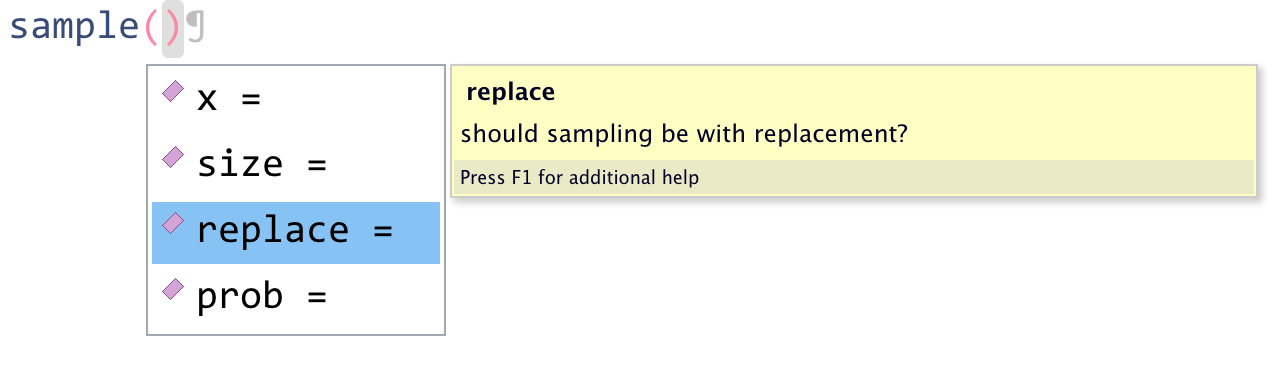
Figure 2.1: Tab auto-complete
2.2 Objects and the assign (<-) operator
A large part of working in R involves creating and manipulating objects. Objects contain stuff. That stuff can be numbers, words, or the result of operations and analyses. You assign content to an object using <-, where the name of the new/updated object appears on the left and the data to be assigned to that object appear on the right.
- Run the following code in the console, but change the values of
nameandageto your own details and changechristmasto a holiday or date you care about.
name <- "Peppa"
age <- 4
today <- Sys.Date()
christmas <- as.Date("2022-12-25")
UK_nations <- tibble(nation = c("Scotland","Wales", "Northern Ireland", "England"), capital = c("Edinburgh", "Cardiff", "Belfast", "London"), population = c(5466000, 3169586, 1895510, 56550138))
You'll see that five objects now appear in the environment pane:
nameis character (text) data. In order for R to recognise it as character data, it must be enclosed in double quotation marks" ".ageis numeric data. In order for R to recognise this as a number, it must not be enclosed in quotation marks.todaystores the result of the functionSys.Date(). This function returns your computer system's date. Unlikenameandage, which are hard-coded (i.e., they will always return the values you enter), the contents of the objecttodaywill change dynamically with the date. That is, if you run that function tomorrow, it will update the date to tomorrow's date.christmasis also a date but it's hard-coded as a very specific date. It's wrapped within theas.Date()function that tells R to interpret the character string you provide as date rather than text.UK_nations- is a "tibble" which is basically a table of data (like the way a spreadsheet stores data in rows and columns). Almost always the data we are interested in will be in this type of object or a "data frame" which is very similar to a "tibble" (and can be converted to one usingas_tibble())
...see R for Data Science
To print the contents of an object, type the object's name in the console and press enter.
- Print all five objects by typing:
name
age
today
christmas
UK_nationsAlternatively, the print() function can be used instead of just entering the objects name. One reason to use print() would be to force R to show all the elements of the object using the n= argument which controls how many elements to print. We'll use this function later in this lab.
Finally, a key concept to understand is that objects can interact and you can save the results of those interactions in a new object.
- Run the following code to create these new objects, and then print the contents of each new object.
age_in_10_years <- age + 10
full_name <- paste(name, "Pig")
how_long <- christmas - today
2.2.1 The $ operator
The dollar sign $ allows you to select items from an object, such as columns from a "tibble". The left-hand side of the $ is the object, and the right-hand side is the item.
- Use this code to extract the populations of the four UK nations from the
UK_nationsobject and store it in a new object calledpopulationsthen print the new object to check that it contains what you expect:
populations <- UK_nations$population
populations
If your item has multiple observations, you can specify which ones to return using square brackets [] and the position or a vector of positions.
- Use this code to get a list of the UK nations in the order they appear in the object
UK_nationsthen create an object that contains just the population of Scotland and another object that contains the population of the other UK nations. Print the two objects you created to check that the code did what you expected
UK_nations$nation
Scotland_capital <- UK_nations$capital[1]     # select one observation
rUK_capitals <- UK_nations$capital[c(2,3,4)]  # select multiple values using c() which creates a vector
Scotland_capital
rUK_capitals
2.2.2 Code comments
In the above code we've used code comments and it's important to highlight how useful these are. You can add comments inside R code with the hash symbol #. R will ignore characters from the hash to the end of the line.
2.2.3 Pipes (%>%)
Pipes (%>%) allow you to send the output from one function straight into another function. Specifically, they send the result of the function before %>% to be the first argument of the function after %>%. It can be useful to translate the pipe as "and then". It's easier to show than tell, so let's look at an example.
We could write the above code using pipes and some new functions from the tidyverse as follows:
UK_nations %>% select(nation)        # pull out one variable

Scotland_capital <- UK_nations %>%
                    select(capital) %>%  # choose one variable
                    slice(1)             # then choose the first observation in that variable

rUK_capitals <- UK_nations %>%
                filter(nation != "Scotland") %>% #choose observations that satisfy a condition
                select(capital)                  #then choose one variable's values of the subset of observations

Scotland_capital
rUK_capitalsAlthough the values in the objects Scotland_capital and rUK_capitals are the same using both sets of code, the "types" of objects they are depends on how they are produced (as shown in the different ways they are "printed"). We don't need to think too much about the different types of objects in this course.
Also, we've the last code used functions select, slice and filter which are part of the dplyr package in tidyverse. We will introduce these functions as we need them, but if you want more information, see this overview, this chapter and/or this Cheat Sheet
2.3 Getting help
You will feel like you need a lot of help when you're starting to learn. This won't really go away; it's impossible to memorise everything. The goal is to learn enough about the structure of R that you can look things up quickly. This is why we'll introduce specialised jargon in the glossary for each chapter; it's easier to google "convert character to numeric in R" than "make numbers in quotes be actual numbers not words". In addition to the function help described above, here's some additional resources you should use often.
2.3.1 Package reference manuals
Start up help in a browser by entering help.start() in the console. Click on "Packages" under "Reference" to see a list of packages. Scroll down to the readxl package and click on it to see a list of the functions that are available in that package.
2.3.2 Googling
If the function help doesn't help, or you're not even sure what function you need, try Googling your question. It will take some practice to be able to use the right jargon in your search terms to get what you want. It helps to put "R" or "tidyverse" in the search text, or the name of the relevant package, like ggplot2.
2.3.3 Vignettes
Many packages, especially tidyverse ones, have helpful websites with vignettes explaining how to use their functions. Some of the vignettes are also available inside R. You can access them from a package's help page or with the vignette() function.
# opens a list of available vignettes
vignette(package = "ggplot2")

# opens a specific vignette in the Help pane
vignette("ggplot2-specs", package = "ggplot2")